Search the Community
Showing results for 'Quick Launch Keyboard'.
-

Kaspersky blocks the Steam app
Slayni replied to Slayni's topic in Kaspersky: Basic, Standard, Plus, Premium
It still doesn’t work for me. I have to completely disable the antivirus to launch the Steam application. I tried continuing the conversation with support, but I ran out of patience. I feel like they're either avoiding confrontation or trying to brush me off. -
In view of the fact that support for Win 10 will end in fall 2025, it is time for Kaspersky to launch a Linux version of Password Manager. I have been a customer of the program for years and own a PC that is not Win 11 compatible. I can't and don't want to buy a new PC. My device is perfectly suitable for my purposes but is already several years old. Therefore, I think in the interest of the many customers who use Kaspersky Password Manager and, like me, have no possibility to buy a new PC but want to continue using the program, the company should fulfill our wish.
-

Update deleted Kaspersky Standard and replaced for Kaspersky Free.
MousePadOff posted a topic in Kaspersky: Basic, Standard, Plus, Premium
Greetings. Yesterday just before going to sleep i was surprised with a strange Pop-up from Kaspersky, it said my antivirus wasn't activated and that my protection was disabled. It was odd since my signature will last until october. A quick look made me realize that after a update, the antivirus just expelled my activation key and downgraded back to Kaspersky Free. I entered my account and had to manually disconnect my computer so i could install once again in the same computer. I'm wondering if this will be a recurring problem, because most of the time I ignore all the annoying pop-ups of Kaspersky, but luckily this time i paid attention since the colors had change from the ones i used to see. PS: Second problem, if you have time: How do i get hid of all the annoying pop-ups that Kaspersky seems to be throwing at me? I know about the configurations inside the program, but i only have the system ones activated, all the others about promotions and news are disabled, but i still get a lot of irritating pop-ups every now and then, even when I'm in fullscreen. I remember Kaspersky being all quiet in the computer back in the day, but now it seems that more and more irrelevant pop-ups are appearing on the screen. -

Kaspersky blocks the Steam app
Sat_rn replied to Slayni's topic in Kaspersky: Basic, Standard, Plus, Premium
That's good to know, as soon I saw this post I immediately unistalled kaspersky and restarted my PC to see steam finally back working, but if all it takes is pausing the protection to launch steam than reactivating it that's a much better solution to unistalling and reinstalling every time the issue pops up. But hopefully they fix this issue that very few seem to be encountering, as it's been a stressful few days since encountering this to say the least. -
Kaspersky blocks the Steam app
Slayni replied to Slayni's topic in Kaspersky: Basic, Standard, Plus, Premium
Good to know, @Sat_rn. I tried uninstalling both Steam and Kaspersky, as @Flood and Flood's wife suggested earlier, but it didn’t make a difference. The only way to launch Steam is by temporarily disabling Kaspersky’s protection. Strangely enough, once Steam is running, I can reactivate the antivirus without any issues — the only thing being blocked is the startup process. PS: I’ve created a ticket and am currently in contact with one of the support agents. I recommend you do the same. Hopefully, we can get this issue resolved quickly. -

Kaspersky blocks the Steam app
D1G1TAL replied to Slayni's topic in Kaspersky: Basic, Standard, Plus, Premium
I have same issue, It has nothing to do with Windows 11 24H2 update as I didn't have it installed before the issue started happening, updated my Windows cause I thought that might be the issue but I didn't do anything. Pausing protection will does not allow to launch Steam, only by completely Exiting Kaspersky does Steam start. Started happening around 29th/30th not sure when exactly. -
Today, I ran into a rather frustrating issue. After turning on my computer on March 30, I noticed that Steam didn’t launch automatically as it normally does. At first, I thought it might just be an autostart glitch, so I tried opening it manually — but nothing happened. The app simply wouldn’t start. I went through all possible fixes: reinstalling Steam, deleting leftover files, and checking system settings, but no luck. Finally, as a last resort, I decided to temporarily disable Kaspersky. To my surprise, Steam launched immediately. However, the problem persists — every time I restart my PC, I have to turn off Kaspersky to open Steam. This has never happened before, and I have no idea what’s causing it. You might wonder if I changed anything on March 29 that could have triggered this. The answer is no — I barely used my computer that day. There were no updates for Steam or Windows, and I didn’t tweak any settings, either in my system or in the antivirus software. One more detail: Poland switched to daylight saving time overnight, from March 29 to 30. Could that have somehow caused a conflict between Kaspersky and Steam? Honestly, I doubt it — but something is definitely wrong, and I don’t know how to fix it. Additionally, I’m using Kaspersky Plus with active protection and Windows 11 24H2 with the latest updates installed. If you need more information, screenshots, or video recordings, I’m happy to provide them. This issue is quite frustrating, and I’d really like to solve it — especially since I’ve never encountered anything like this before. I’m also worried that Kaspersky might be blocking more applications than just Steam. For now, everything else seems to be working fine.
-

Hardware Virtualization
harlan4096 replied to VashtiianWasTaken's topic in Kaspersky: Basic, Standard, Plus, Premium
Welcome to Kaspersky Community. Please check these threads about this issue: https://forum.kaspersky.com/search/?q=Hardware Virtualization&quick=1&type=forums_topic&nodes=159 -
Yes, but it doesn't just happen on this link. I didn't note the different URLs, but it always happens on side URLs like a page may call under the hood (here, maybe connecting to an API); what I mean is that I didn't access this connect.facebook.net URL, but one of a page I visited did it apparently. Well, I'll restart my PC, clean the cache and cookies, then launch a full Kaspersky scan... And if this kind of warning comes again, I'll notice the concerned URLs...
-

Kaspersky VPN Freezes on Apple MacBook After Selecting a Node
JAV2022 posted a topic in Kaspersky VPN Secure Connection
Description: I am experiencing multiple issues with the Kaspersky VPN application on my Apple MacBook. Firstly, when I launch the app and select a node to connect to, the application freezes and becomes unresponsive. Additionally, I am unable to quit the app normally, and it appears to stop functioning entirely. Secondly, there are times when the application doesn’t even open properly—upon launching, it fails to display the interface at all. These issues persist despite restarting the app and my device. Details: Device: Apple MacBook Air Operating System: macOS Monterey 12.3.1 Kaspersky VPN Version: 3.4.2 Steps to Reproduce: Open the Kaspersky VPN application. Select a node from the available list (if the interface loads). The app freezes immediately after selection and cannot be closed without force-quitting. Alternatively, launching the app sometimes results in no interface displaying at all. Troubleshooting Attempted: Restarted the application. Restarted my MacBook. Ensured my internet connection is stable. Could you please assist me in resolving these issues? Any guidance or a potential fix would be greatly appreciated. Thank you! -
 Since a week ago or so, i've been having an issue where Kaspersky will 'randomly' block all access to websites regardless of the browser i use. I did several tests to figure out what was going on before coming to the conclusion it was Kaspersky: Checked other devices connected to the network that are not running Kaspersky and all are working fine Double checked that time/date was correct and windows was syncing properly to their servers (still works even when kaspersky blocks) Tracert to the respective websites domain works Tried ipconfig flushdns/register, netsh winsock reset and other Tried pausing Kaspersky protection Uninstalled and then reinstalled Kaspersky latest client The only solution i've found to work around this issue has been to either reboot my PC, or to exit Kaspersky and launch it again. I do not see anything in the Kaspersky timeline or System Audit reports page that explain what is happening, i haven't got any warnings either about certificates, so i'm a bit lost on what i have to do in order to solve this issue. Windows version: Win10 Pro 10.0.19045 Build 19045 Kaspersky Plus: 21.20.8.505
 -

Website mistakenly flagged as a phishing
Latif6171 replied to Latif6171's topic in Virus and Ransomware related questions
I appreciate for your quick support and response. Thank you so much. -
Website mistakenly flagged as a phishing
Latif6171 replied to Latif6171's topic in Virus and Ransomware related questions
Thank you for your quick reply. I am waiting for the result from your team. -

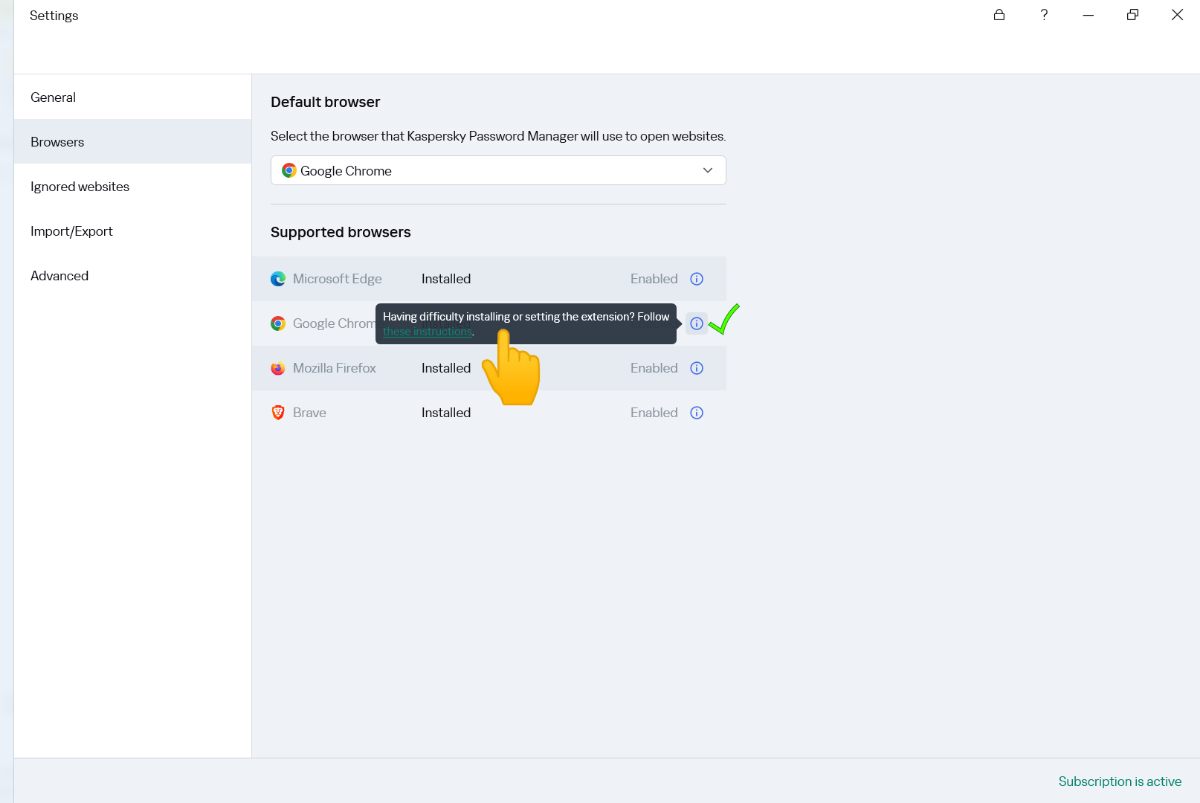
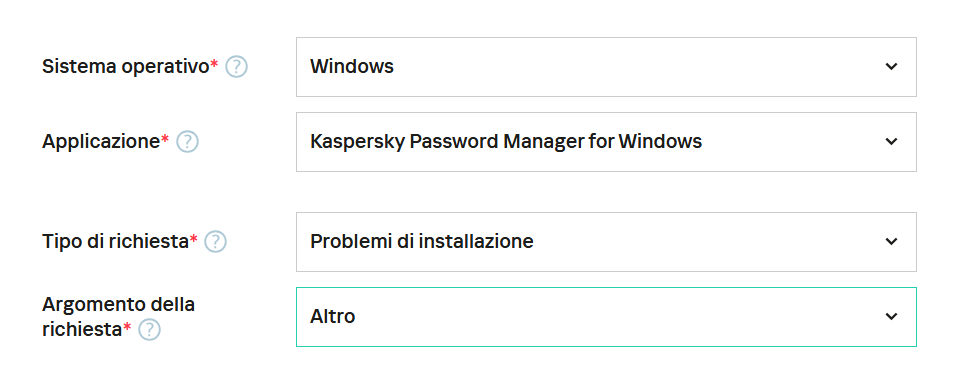
password manager chrome app installed but the software does not see it
Flood and Flood's wife replied to thenax's topic in Utenti privati
Hello @thenax, Welcome back! Is this a continuation of the KPM Chrome extension issue starting back in Jan 2025? KPM is now at version 25.0.0.501 (a) / 1741787757_7668 / 1.1.0.2_1 Please share the Windows 11 full build number -> open the dialogue box Run by pressing Win + R keyboard hotkey Type winver and click OK. Post back what's shown in the WINVER app please? Do the following: In KPM, go to Import/Export section, Backup copy, select Create Copy, save the Backup, read: Sezione Importazione/esportazione, sezione Copia di backup, Crea copia Exit KPM, do not start again at this stage. Windows, create a Restore point, read: How to create a restore point in Windows. *Uninstall* the KPM extension from Google. Exit the Google browser & do not restart again at this stage. *Uninstall* KPM using Windows, read: Disinstallare l'applicazione, *work from dot-point 3 onwards* When the KPM uninstall is complete -> shutdown the computer using SHUTDOWN, not Restart, when the computer is OFF -> power ON by pressing the power button, login. Start a Google Chrome browser. In Google Chrome -> turn OFF Autosave and Autofill settings. Download a *new* KPM executable from (your) MyKaspersky account. Install KPM. The KPM extension *should* install during the process & this should be reflected in the KPM application IF the original issue *persists*, read: Estensione installata. Configurare il browser affinché l'estensione funzioni correttamente & contact Kaspersky Customer Service, read: Come ottenere assistenza dal Servizio clienti , *Also* -> IF using Chat - *before* ending the chat -> ask the operator to email (you) a copy of the chat transcript - otherwise (you'll) have no record of the chat* Please share the outcome, with the Community, when it's available? Thank you? Flood?+?
-

Kaspersky installation Fails due to 360 antivirus
Renan Corassa replied to Marcos Chipango's topic in Kaspersky Endpoint Security Cloud
Download KES 12.8 https://aes.s.kaspersky-labs.com/endpoints/keswin11/12.8.0.505/english-21.20.8.505.0.185.0/3936353734377c44454c7c31/keswin_12.8.0.505_en_aes56.exe After running the file and extracting the package to your preferred destination, replace the "cleanerapi_v2.cab" file from the package with the one from the link below https://www.transfernow.net/dl/20250313pCj3wJuC Launch the setup_kes.exe file and wait. -

Can't enable remote control of Kaspersky Plus. Windows 11.
IanJNB posted a topic in Kaspersky: Basic, Standard, Plus, Premium
Hi. I found this but in Settings, I don't have Application Settings. Open Kaspersky settings: Launch your Kaspersky application and navigate to the settings menu. Access Application Settings: Within the settings, locate the "Application Settings" section. Find Remote Control Defense: In the settings panel, look for the "Remote Control Defense" option. Disable the feature: Uncheck the box next to "Disable external management of system services" to allow remote access. -
Mugshot in Kaspersky PLUS - Android 14 - Not Working
IanJNB posted a topic in Kaspersky: Basic, Standard, Plus, Premium
Hi. I haven't blocked the camera in Quick Settings. When I try out Mugshot from My Kaspersky, I receive an email saying that the response is "OK" but I never get a mugshot. I uninstalled and reinstalled Kaspersky today, so I assume I've installed the latest version. Phone: Samsung Galaxy S23 Ultra. SM-S918B/DS. One UI version: 6.1 -

Kaspersky Installation Disabled All USB Input Devices – Cannot Log In to Windows
hega333 posted a topic in Kaspersky Total Security
After installing Kaspersky, all USB input devices (keyboard & mouse) stopped working immediately after booting into Windows. Windows itself boots fine, but since no input devices work, I cannot log in. The issue started after attempting to install Kaspersky. During installation, it gave a message stating that Avira was still installed, even though it had been removed two years ago. I manually checked the registry and deleted two Avira-related entries, but one entry could not be removed. I continued with the Kaspersky installation anyway, and then both of my monitors went gray, and several DLL errors appeared. After restarting the PC, USB devices stopped working completely in Windows, even though they still work in BIOS and in the Windows Recovery menu. Steps Already Attempted (None Worked): 1. BIOS & Hardware Checks: - Keyboard and mouse work in BIOS, so this is not a hardware issue. - Legacy USB Support is already enabled in BIOS, so USB ports are not blocked at the motherboard level. - Tried multiple USB ports (front, back, USB 2.0, USB 3.0), but none work in Windows. - No PS/2 ports available, so that option is ruled out. 2. Windows Recovery & Safe Mode Attempts: - Booted into Advanced Startup (Recovery Mode), and USB devices work there. - Booted into Safe Mode (F4), but USB devices do not work. - Booted into Safe Mode with Networking (F5), but USB devices do not work. - Booted into Safe Mode with Command Prompt (F6), but USB devices do not work. - Attempted “Startup Repair” in Recovery Mode, but it did nothing. - Tried “Reset This PC” with “Keep My Files,” but it failed with the error “Could not reset this PC, no changes were made.” 3. Kaspersky Removal Attempts (Failed Due to No Input): - Tried opening Command Prompt in Safe Mode to uninstall Kaspersky, but no input devices work, so I couldn’t type commands. - Manually checked Kaspersky’s installation folders using Command Prompt in Recovery Mode: - C:\Program Files\Kaspersky Lab does not exist. - C:\ProgramData\Kaspersky Lab does not exist. - Manually checked Windows registry for Kaspersky-related services (klflt, klkbdflt, klmouflt, avp, etc.), but none were found. 4. USB Driver Repair Attempts (Did Not Work): - Tried enabling USB drivers manually via Registry in Command Prompt: reg add "HKEY_LOCAL_MACHINE\SYSTEM\CurrentControlSet\Services\USBHUB3" /v Start /t REG_DWORD /d 3 /f reg add "HKEY_LOCAL_MACHINE\SYSTEM\CurrentControlSet\Services\usbhub" /v Start /t REG_DWORD /d 3 /f reg add "HKEY_LOCAL_MACHINE\SYSTEM\CurrentControlSet\Services\usbxhci" /v Start /t REG_DWORD /d 3 /f reg add "HKEY_LOCAL_MACHINE\SYSTEM\CurrentControlSet\Services\usbehci" /v Start /t REG_DWORD /d 3 /f reg add "HKEY_LOCAL_MACHINE\SYSTEM\CurrentControlSet\Services\USBSTOR" /v Start /t REG_DWORD /d 3 /f None of these commands fixed the issue. - Tried forcing USB driver reinstallation using DISM & pnputil in Command Prompt, but it did nothing. - Checked disk partitions (diskpart) to confirm Windows installation drive was correct, but there was confusion with the drive letters (C: and X: were mismatched). Current Situation: - Windows still boots fine, but I cannot log in because keyboard and mouse do not work. - Recovery Mode recognizes USB, but Safe Mode and normal Windows do not. - Kaspersky is not listed in Program Files, ProgramData, or the registry, but the issue clearly started right after installing Kaspersky. - Resetting Windows fails, so I cannot even attempt a repair install from inside Windows. --- What I Need from Support: - How to fully remove Kaspersky (including any hidden services) without being able to log in. - How to manually enable USB drivers from Recovery Mode. - How to fix the "Reset This PC" failure in case a repair install is required. -

Messages 'need to format the Ext HDD' before I can access the files.
Berny replied to Scorpio484's topic in Kaspersky: Basic, Standard, Plus, Premium
@Scorpio484 According your above provided details this doesn't look like a Kaspersky Premium issue. ↓ To display all your drives ↓ 1) Please check this ? Windows Key +R type ' diskmgmt.msc ' 2) Please check this ? Run CMD as ADMIN Type ' diskpart ' to launch DISKPART> After DISKPART> type ' list disk ' -

Kaspersky deleted Trojan file. Am I safe?
hamishp replied to hamishp's topic in Virus and Ransomware related questions
HI, thanks for your speedy reply. I managed to find the file in the quarantine and was quick to delete it. I have also updated my Kaspersky software (thanks for the heads-up, wouldn't have known to otherwise) did another scan after all your advice and it read safe so I am very relieved. Thanks again so much and I'm just happy Kaspersky itself dealt with the malware so fantastically. My confidence in the software has only been bolstered after this. -
Hi all I cannot get Kaspersky Premium to run as when I click on the icon to run it I get a page with the message that the subscription is blocked, however in "My Kaspersky" it is showing the license is still active with 235 days remaining and all 5 devices linked. I first noticed this yesterday when I tried logging on to my bank and it wouldn't because "Safe Money" couldn't run. That's when I clicked on the Icon to go to the settings. I can't find anything pertaining to this after a quick search. Any suggestions? Cheers Keith Windows 10 all up to date
-

Step by step to create Encryption Policy for managed Windows machines.
Tahmeed702 replied to Rodh_oliver's topic in Kaspersky Security Center
1. Creating an Encryption Policy Kaspersky Endpoint Security for Windows (KES) includes Full Disk Encryption (FDE) or File-Level Encryption capabilities, depending on your license. Here’s how to configure it: Step 1: Open the Kaspersky Security Center Console Launch the Kaspersky Security Center Administration Console. Navigate to Policies > Your Managed Group (e.g., the Active Directory OU where your machines reside). Step 2: Create a New Policy Right-click your managed group and select Create Policy > Kaspersky Endpoint Security for Windows. Name the policy (e.g., "Domain Encryption Policy"). Step 3: Configure Encryption Settings Go to the Encryption section in the policy settings. Enable Full Disk Encryption (FDE): Select the drives to encrypt (system drive, fixed drives, etc.). Choose the encryption algorithm (e.g., AES-256). Configure pre-boot authentication (e.g., password, USB key, or integration with Active Directory credentials). File-Level Encryption: Define rules for encrypting specific files/folders (if applicable). Step 4: Deploy the Policy Assign the policy to the target group of machines in your domain. Ensure the policy is applied to all managed devices. 2. Managing Encryption Keys Kaspersky stores encryption keys securely, but you must plan for recovery scenarios (e.g., forgotten passwords, hardware failure). Step 1: Recovery Key Storage Kaspersky Key Storage: Encryption keys are stored in the Kaspersky Security Center database by default. To retrieve keys: In the KSC console, go to Devices > select the target machine. Navigate to Encryption > Recovery Keys. Export and securely store the recovery key (e.g., in a password vault). Active Directory Integration (Optional): Configure Kaspersky to store recovery keys in Active Directory (if integrated). This allows centralized management via AD attributes. Step 2: Decrypting a Machine Via the KSC Console: Right-click the encrypted device > Decrypt Disk. Authenticate using admin credentials or a recovery key. Using a Recovery Key: Boot the machine and enter pre-boot authentication mode. Select the recovery option and input the recovery key (manually or via a USB file). Step 3: Key Backup Best Practices Export and back up recovery keys to a secure, offline location (e.g., a hardware security module or encrypted storage). Restrict access to keys to authorized admins only. 3. Additional Considerations Pre-Boot Authentication: Ensure compatibility with your domain environment (e.g., AD credentials for seamless login). Disaster Recovery: Test decryption workflows regularly. Audit Logs: Use KSC reports to monitor encryption status and key usage. Troubleshooting If a machine is unbootable after encryption, use the Kaspersky Rescue Disk (bootable USB) to decrypt it with the recovery key. Ensure the Kaspersky Security Center server and clients are updated to the latest version (e.g., 12.8). Let me know if you need further clarification on specific steps! ? -

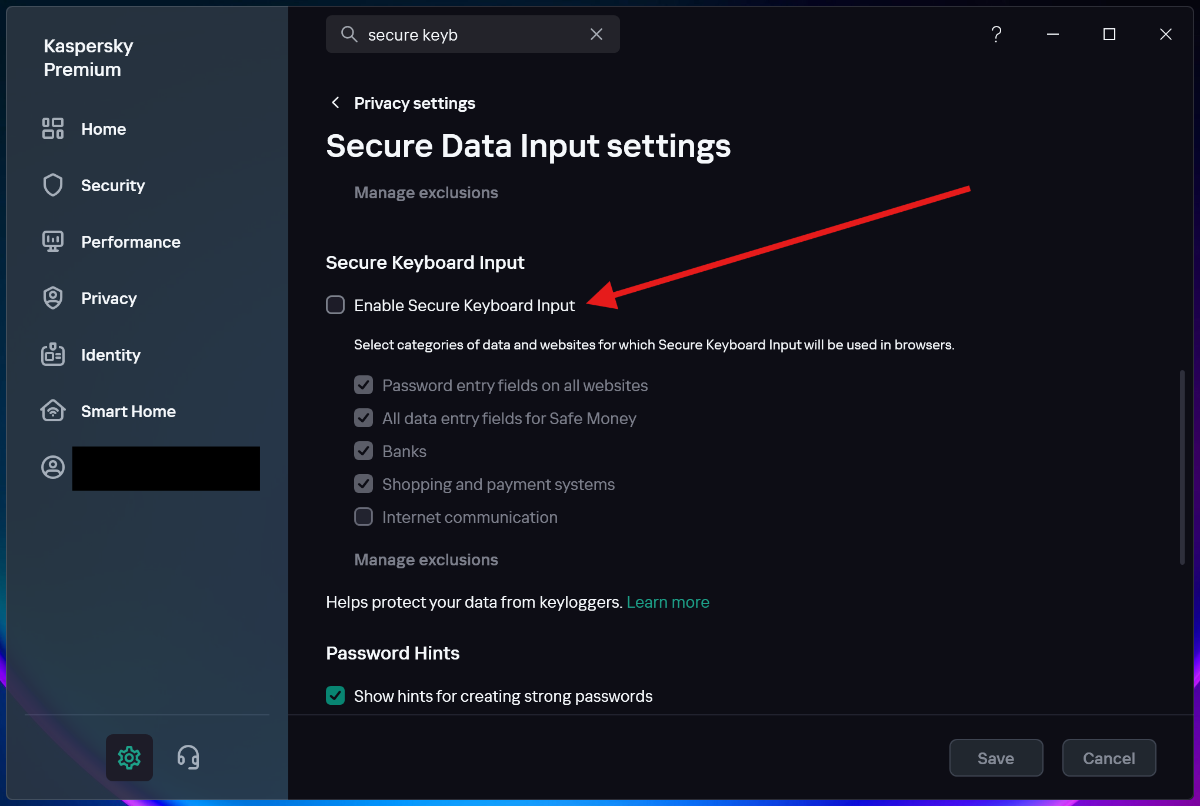
REMOVE the "Secure keyboard input is enabled" popup!
BlackEdition replied to BlackEdition's topic in Kaspersky: Basic, Standard, Plus, Premium
I may be late but you can actually disable this feature. Go to settings and search for "secure keyboard input", click on it, then the settings for this feature will open. Just uncheck to disable it and click save. My complaint in the thread is that I want to continue using this feature without the annoying popup showing up every time. This feature is supposed to "help protect your data from keyloggers", so there's no reason why someone should disable it, except that annoying popup forces us to disable this feature completely. I've been living with that feature disabled for many years because of the popup. Note: This feature is different from On-Screen Keyboard. The settings for both are available on that same page.
-

Newly Purchased Domain Falsely Flagged as Dangerous
Sam Black replied to Sam Black's topic in Virus and Ransomware related questions
Dear Berny, thank you so much for your help with the website. You made the process so much easier, and I really appreciate your quick and clear support.- 9 replies
-
- 1
-

-
- virus
- false positive
- (and 2 more)
-

US Government Ban on private use of Kaspersky anti-virus
ChristineAZ replied to MajorMike's topic in Kaspersky Total Security
I'm sorry, I can't do this VPN stuff. Have nothing but computer problems, waiting for a new keyboard, the very last thing I need is more computer crap. Just decided to wrap up my projects in the US and get the hell out while we still can.