

How to run bat files remotely [KSC for Windows]

Entry posted by svc_kms in How-to
1162 views

Example of deploying Chrome on the Windows host with additional test commands (mkdir, ping) through the KSC Linux/KSCW Web Console.
testbatch.bat from the video:
mkdir c:\test1

ping 127.0.0.1>c:\test1\ping.txt

msiexec /i "googlechromestandaloneenterprise64.msi" /qn /norestart
In this article we will share the steps on how to run a batch (*.bat) file remotely through Kaspersky Security Center (KSC) on Windows devices.
Other script types and binary file formats (for example, Powershell (*.ps1), EXE-files, MSI installers) must be run from the batch file too. KSC does not support direct execution of other formats, this can lead to unexpected task behavior.
Depending on the KSC console type you must prepare the script file with additional files:
- As an archive (supported formats are ZIP, CAB, TAR, or TAR.GZ) for Web Console.
- As a separate folder containing files for the package only - Administration Console (MMC).
How to prepare a script correctly
When you a using functionaly for deploying automated scripts on the Windows management devices you need to keep to a few important points:
-
Use supported versions of Kaspersky Security Center and Network Agent. Deployment behavior of EOL versions can be different.
- The default limit for installation packages is 1 GB. It can be manually changed. Also you need to remember that the default task process limit is 60 min. It must be increased for big packages and low performance controlled devices.
- Some commands and programs do not support execution under LocalSystem account (for example, 'per user' application installers).
-
KSC remote installations tasks use only following MS Windows OS variables: "C:\Windows\system32;C:\Windows;"
For example, for running Powershell scripts from the batch file we recommend using the command like this one:"%windir%\System32\WindowsPowerShell\v1.0\powershell.exe -ExecutionPolicy bypass -file scriptfile.ps1" -
Some binary files are not recognized as internal (external) for 32-bit
cmd.exethus cannot be started from 32-bitcmd.exeprocess. Because during task execution Network Agent will run the file using a 32-bitcmd.exeprocess:C:\Windows\SysWOW64\cmd.exeunder the LocalSystem account.
Please, use the following instruction to resolve this problem.
How to add registry values to the HKLM\SOFTWARE paths on 64-bit Windows
As you know, WOW6432Node is typically used for 32-bit applications on 64-bit machines. Use the following command examples to add values to these registry paths on an x64 OS:
- HKLM\SOFTWARE
- HKLM\SOFTWARE\WOW6432Node
Example for x64 OS:
reg add "HKLM\SOFTWARE\_TEST_x32" /v "Test32" /t "REG_DWORD" /d "1" /f
:: To check the result:
:: reg query "HKLM\SOFTWARE\WOW6432Node\_TEST_x32"
:: HKEY_LOCAL_MACHINE\SOFTWARE\WOW6432Node\_TEST_x32
::     Test32    REG_DWORD    0x1

reg add "HKLM\SOFTWARE\_TEST_x64" /v "Test64" /t "REG_DWORD" /d "1" /f /reg:64
:: To check the result:
:: reg query "HKLM\SOFTWARE\_TEST_x64"
:: HKEY_LOCAL_MACHINE\SOFTWARE\_TEST_x64
::     Test64    REG_DWORD    0x1
How to execute batch file using 64-bit cmd.exe process with a symbolic link
-
Add a symbolic link to 64-bit
cmd.exein the script. -
Run all cmdlets using this symlink:
REM the following creates symlink named cmdin64.exe to C:\Windows\System32\cmd.exe
cmd.exe /c mklink cmdin64.exe "C:\Windows\System32\cmd.exe"
REM next line starts app64.exe with , which is not recognized as internal or external for 32-bit cmd.exe
cmdin64.exe /c app64.exe
How to execute a batch file on the Windows remote hosts
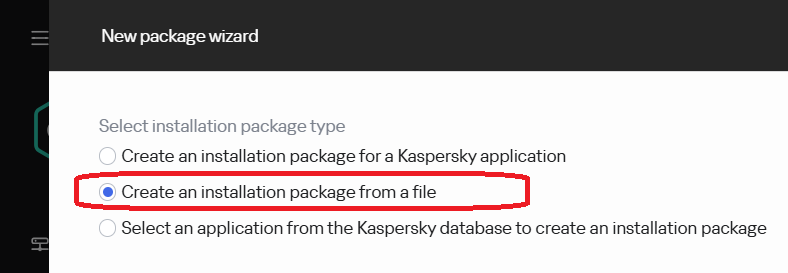
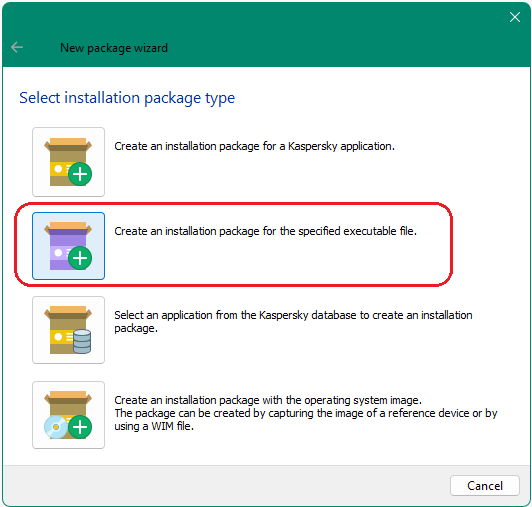
Create an installation package for the specified executable file.
MMC:
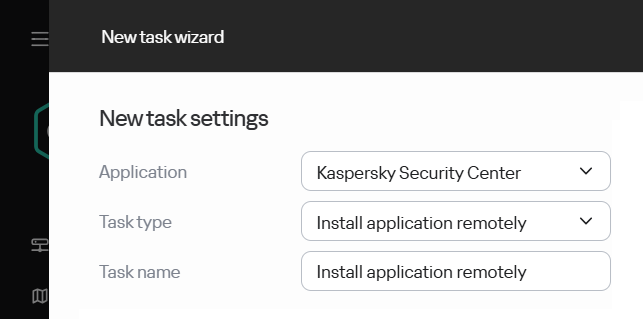
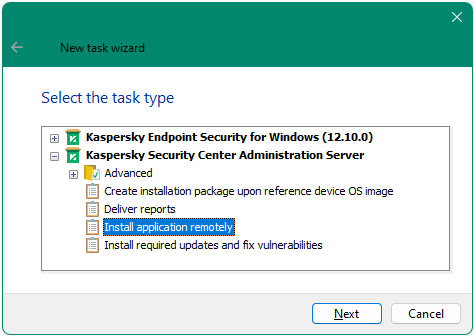
Create a remote installation task for that installation package.
MMC:
Assign the task to a target hosts and start it.




















0 Comments
Recommended Comments
There are no comments to display.
Please sign in to comment
You will be able to leave a comment after signing in
Sign In Now