

Wow to delete a device [KES Cloud]

Entry posted by svc_kms in How-to
11 views
Description
Sometimes procedure of computer removing from workspace can be not fully clear. In this article we described a full removal scenario.
Standard removal
- Before deleting devices running Windows or macOS, make sure the devices are decrypted. After deletion, you will not be able to decrypt the device from the console.
- Put device into Marked for deletion list: https://support.kaspersky.com/kes-cloud/1.0/138147?version=latest
-
If device still syncing with KES Cloud, automatic uninstallation will start. Wait till the uninstallation process will be performed or force it by the option Run uninstallation now in the device properties. Uninstallation of security applications starts on all of the devices on which uninstallation is scheduled: https://support.kaspersky.com/kes-cloud/1.0/138148?version=latest



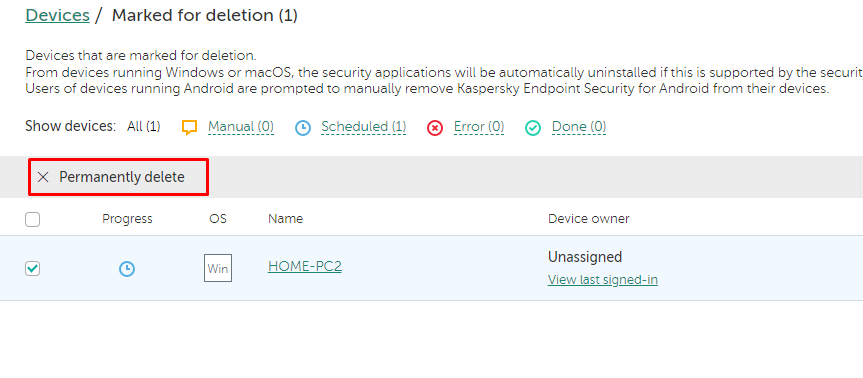
Permanently delete
The Permanently delete option might be confusing. This option is used for removing the entry from the devices list.
It can be useful when a device is not syncing with KES Cloud anymore, but the entry is still on the devices list.
Quote
Do not use this option for the devices, where Network Agent is still installed and can sync to KES Cloud.
After a first successful sync the device will re-appear in the KES Cloud Console. You should wait for the automatic deletion of applications or delete it manually.






















0 Comments
Recommended Comments
There are no comments to display.
Please sign in to comment
You will be able to leave a comment after signing in
Sign In Now