Skip to content
View in the app

A better way to browse. Learn more.

Kaspersky Support Forum

A full-screen app on your home screen with push notifications, badges and more.

To install this app on iOS and iPadOS
  1. Tap the Share icon in Safari
  2. Scroll the menu and tap Add to Home Screen.
  3. Tap Add in the top-right corner.
To install this app on Android
  1. Tap the 3-dot menu (⋮) in the top-right corner of the browser.
  2. Tap Add to Home screen or Install app.
  3. Confirm by tapping Install.

"User study page is not loading" or "the start button is not active" [Kaspersky Automated Security Awareness Platform]

Problem Description, Symptoms & Impact

The problem persists over different browsers, incognito mode and computers. The training status is "In Progress". The number of problematic users is small usually limited to 1-5.

Diagnostics

The issue usually presents itself on the student's (not admin's) side as a grey (non-active) button or a page that is not loading completely.

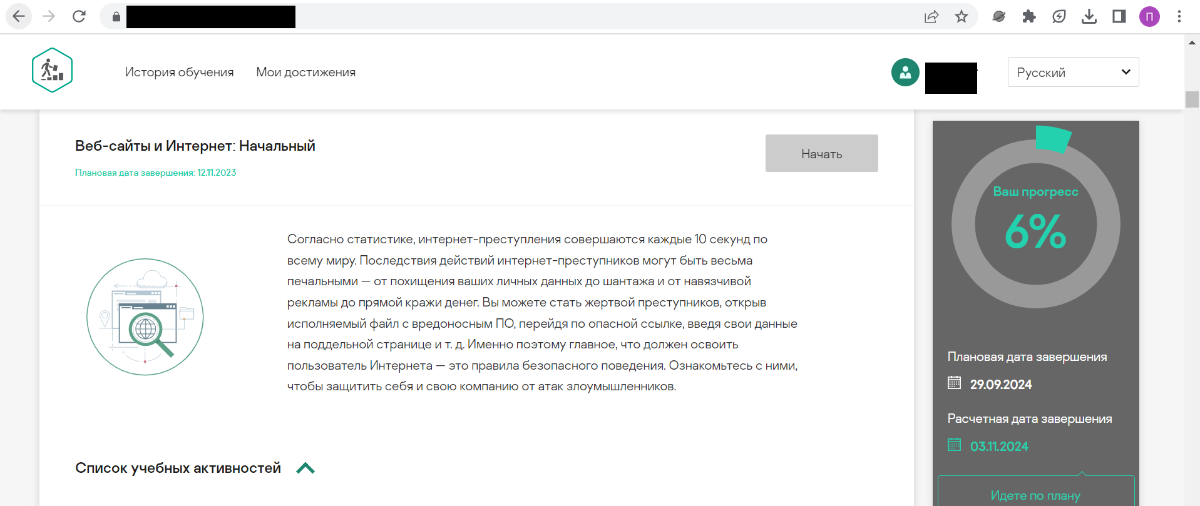
image.thumb.png.f1168e6d23ea1fe67b1ef1fd95062542.png

image.thumb.png.d599bc911ce84d9681c1f8df095f15de.png

Workaround & Solution

  1. Clear the cache and cookies in the browser.
  2. Pause the training for the problematic user and then restart the training.

0 Comments

Recommended Comments

There are no comments to display.

Account

Navigation

Search

Search

Configure browser push notifications

Chrome (Android)
  1. Tap the lock icon next to the address bar.
  2. Tap Permissions → Notifications.
  3. Adjust your preference.
Chrome (Desktop)
  1. Click the padlock icon in the address bar.
  2. Select Site settings.
  3. Find Notifications and adjust your preference.