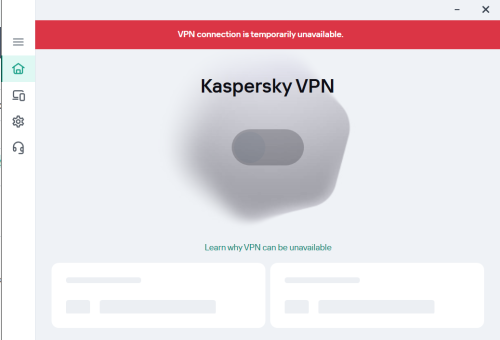
August 26, 20242 yr Please help, My Kaspersky VPN connection is temporarily unavailable since yesterday. Using VPN in Singapore.
August 26, 20242 yr 3 hours ago, Eugene_Batik said: Please help, My Kaspersky VPN connection is temporarily unavailable since yesterday. Using VPN in Singapore. Hello @Eugene_Batik, Welcome! We're unable to replicate the issue! Since the problem started yesterday, has the computer been shutdown - using SHUTDOWN, not Restart, then the power button pressed, to restart the computer & logged in? IF 'no', please do that? Since the problem started yesterday, has the Kaspersky VPN been uninstalled -> followed by computer SHUTDOWN / power OFF, ON / login -> followed by a clean install of Kaspersky VPN? IF 'no', please do that - using the following link: Kaspersky Secure Connection download: Kaspersky Secure Connection. IF the problem still persists AFTER a clean install, log a request with Kaspersky Customer Service, https://support.kaspersky.com/b2c#contacts - select either Chat or Email, then fill in the template as shown ; please include a detailed history. Support may request logs, traces & other data; they'll guide you: Please share the outcome with the Community, when it's available? Thank you? Flood?+? Edited August 26, 20242 yr by Flood and Flood's wife added images
Please help, My Kaspersky VPN connection is temporarily unavailable since yesterday. Using VPN in Singapore.