Skip to content
View in the app

A better way to browse. Learn more.

Kaspersky Support Forum

A full-screen app on your home screen with push notifications, badges and more.

To install this app on iOS and iPadOS
  1. Tap the Share icon in Safari
  2. Scroll the menu and tap Add to Home Screen.
  3. Tap Add in the top-right corner.
To install this app on Android
  1. Tap the 3-dot menu (⋮) in the top-right corner of the browser.
  2. Tap Add to Home screen or Install app.
  3. Confirm by tapping Install.

Kaspersky's status keeps changing

Using Kaspersky Premium 21.15.8.493 (for now until I switch to Endpoint) and Windows 11 Pro 23H2 22631.2715.

On the Home page, I've noticed that it alternates between two statuses at the top. Normally it says "Main protection components are running":

image.png.0c75a1edd48e0dc786d5ad8d8abc23a0.png

But then changes into "Automatic threat detection":
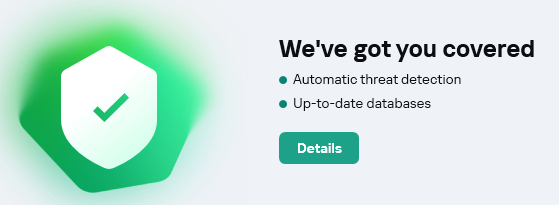
image.png.72e68796e7d2ed920a6ed4aa599688c8.png

Does this mean anything? My friend who has the same Kaspersky Premium version using my subscription, never sees the second status, only the first, and we've had it for the same amount of time.

Featured Replies

4 hours ago, Crylune said:

Kaspersky Premium 21.15.8.493, Windows 11 Pro 23H2 22631.2715.

On the Home page, I've noticed that it alternates between two statuses at the top. Normally it says "Main protection components are running", But then changes into "Automatic threat detection":

  1. Does this mean anything? 

Hello @Crylune, 

Welcome back!

  1. No. IF you mean "does it mean anything 'bad'"? Does it mean (your) Kaspersky software is functioning exactly as it should be, yes it is. 

USER_2023-11-23_105133.thumb.jpg.c4cc850776e58fd12ed448607ebc1c1a.jpg

Thank you?
Flood?+?

Edited by Flood and Flood's wife
pn

Please sign in to comment

You will be able to leave a comment after signing in

Sign In Now

Account

Navigation

Search

Search

Configure browser push notifications

Chrome (Android)
  1. Tap the lock icon next to the address bar.
  2. Tap Permissions → Notifications.
  3. Adjust your preference.
Chrome (Desktop)
  1. Click the padlock icon in the address bar.
  2. Select Site settings.
  3. Find Notifications and adjust your preference.