Skip to content
View in the app

A better way to browse. Learn more.

Kaspersky Support Forum

A full-screen app on your home screen with push notifications, badges and more.

To install this app on iOS and iPadOS
  1. Tap the Share icon in Safari
  2. Scroll the menu and tap Add to Home Screen.
  3. Tap Add in the top-right corner.
To install this app on Android
  1. Tap the 3-dot menu (⋮) in the top-right corner of the browser.
  2. Tap Add to Home screen or Install app.
  3. Confirm by tapping Install.

Hardware virtualization Kaspersky/Windows issue

Is it possible to use Hyper-V with Kaspersky virtualization enabled? If it's not possible, when will this be fixed? I'm a developer and Hyper-V needs to remain enabled in my environment. 
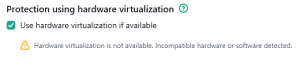
image.thumb.png.cdf43d0893f28fb758c1f0adc47e0a23.png

Thanks.

Featured Replies

  • Author

I need Hyper-V enabled.

So there is no solution, unfortunately.


Thanks. 

@cristianpj
I understand. Kaspersky is not compatible with other hyper-v.

You can try (only for test) disable hyper-v in features enable/ disable uncheck checkbox hyper-v then should kaspersky virtualzation works.

Snímka obrazovky 2023-03-30 182822.png

  • 3 weeks later...

I have the same problem. I regularly use Hyper-V and because of that I cannot use Kaspersky virtualization.

Kaspersky should at least tell us what is the purpose of its virtualization. When is it used? How important is it?

Is it just used for Safe Money protected browser? If I don't use protected browser is there even benefit enabling Kaspersky virtualization?

As I understand it now. If you don't use Safe Money protected browser that makes Kaspersky virtualization useless and there is no point in having it enabled.

But Kaspersky should make this clear. 

Edited by Foxtrot

Please sign in to comment

You will be able to leave a comment after signing in

Sign In Now

Account

Navigation

Search

Search

Configure browser push notifications

Chrome (Android)
  1. Tap the lock icon next to the address bar.
  2. Tap Permissions → Notifications.
  3. Adjust your preference.
Chrome (Desktop)
  1. Click the padlock icon in the address bar.
  2. Select Site settings.
  3. Find Notifications and adjust your preference.