Skip to content
View in the app

A better way to browse. Learn more.

Kaspersky Support Forum

A full-screen app on your home screen with push notifications, badges and more.

To install this app on iOS and iPadOS
  1. Tap the Share icon in Safari
  2. Scroll the menu and tap Add to Home Screen.
  3. Tap Add in the top-right corner.
To install this app on Android
  1. Tap the 3-dot menu (⋮) in the top-right corner of the browser.
  2. Tap Add to Home screen or Install app.
  3. Confirm by tapping Install.

Can not enable Real Time Protection.

Hello,

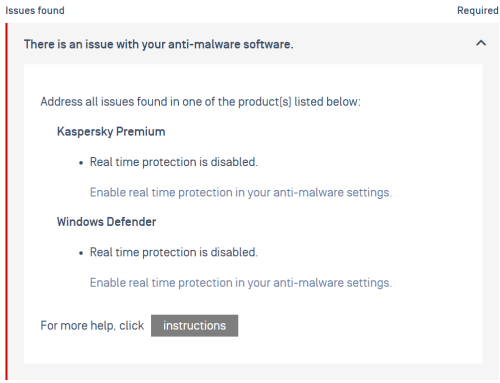
I need to enable real-time protection, but I can not see that option on the Kaspersky Desktop App, and I also can not enable it on Windows Defender because Kaspersky is set as the main anti-malware app. I need help.

image.thumb.png.61678e4b56892543fbfacb8d5ea41e4e.png

Featured Replies

@mehmetkrgn Welcome.

Please run System File Checker with command ‘sfc /scannow’ ? 

  • Author
On 5/13/2025 at 9:45 PM, Berny said:

@mehmetkrgn Welcome.

Please run System File Checker with command ‘sfc /scannow’ ? 

Beginning verification phase of system scan.
Verification 100% complete.

Windows Resource Protection did not find any integrity violations.

What's now?

@mehmetkrgn

Which Kaspersky version are you running ?

  • Author
18 minutes ago, Berny said:

@mehmetkrgn

Which Kaspersky version are you running ?

Kaspersky premium, app version 21.21.7.384

Please sign in to comment

You will be able to leave a comment after signing in

Sign In Now

Account

Navigation

Search

Search

Configure browser push notifications

Chrome (Android)
  1. Tap the lock icon next to the address bar.
  2. Tap Permissions → Notifications.
  3. Adjust your preference.
Chrome (Desktop)
  1. Click the padlock icon in the address bar.
  2. Select Site settings.
  3. Find Notifications and adjust your preference.