Skip to content
View in the app

A better way to browse. Learn more.

Kaspersky Support Forum

A full-screen app on your home screen with push notifications, badges and more.

To install this app on iOS and iPadOS
  1. Tap the Share icon in Safari
  2. Scroll the menu and tap Add to Home Screen.
  3. Tap Add in the top-right corner.
To install this app on Android
  1. Tap the 3-dot menu (⋮) in the top-right corner of the browser.
  2. Tap Add to Home screen or Install app.
  3. Confirm by tapping Install.

About Kaspersky VPN

My valorant app when Split Tunneling is on it can't connect to the server even though I have it set to "Don't use VPN". With Split Tunneling off, all connections work fine, but I want to play valorant while using the VPN in the browser. Plz help.
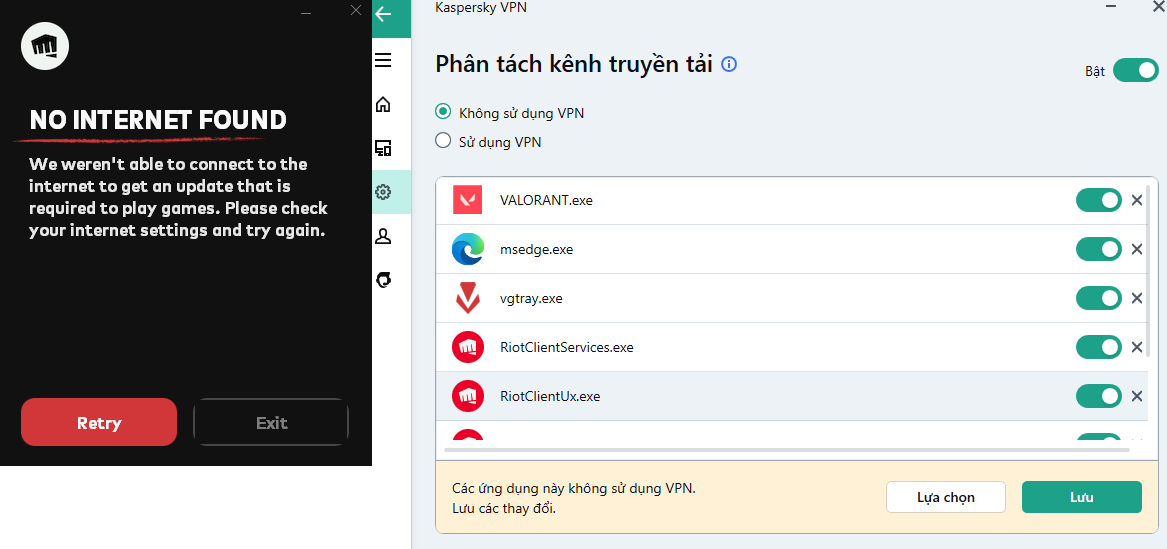
Untitled.png

Featured Replies

@Arch Welcome.

This is weird , your above Split Tunneling settings are correct ?
Also ,  it looks like Valorant is detecting and blocking VPN connections.

  • Author
After a day of using Kaspersky VPN, I was really disappointed to spend $30 to use an application that has all the functions I need such as Split Tunneling and VPN for torrenting. About Split Tunneling, I can't use parallelism between the browser and when playing the game valorant, about downloading torrents, I also choose the server Vietnam - My country, but the speed is very slow, after I turn off the VPN, I can download it even even faster than that. Can I keep to expect Kaspersky VPN or get a refund?

1.png

2.png

Edited by Berny
Topic merged

Please sign in to comment

You will be able to leave a comment after signing in

Sign In Now

Account

Navigation

Search

Search

Configure browser push notifications

Chrome (Android)
  1. Tap the lock icon next to the address bar.
  2. Tap Permissions → Notifications.
  3. Adjust your preference.
Chrome (Desktop)
  1. Click the padlock icon in the address bar.
  2. Select Site settings.
  3. Find Notifications and adjust your preference.